
When coding, especially with excessive HTML nesting and complex CSS styles, two common issues often arise:
There is a complete disconnect between code and preview. After modifying a line of HTML or CSS, it takes ages to locate the corresponding element in the preview, or vice versa, resulting in extremely low error-checking efficiency.
Minor errors are hard to spot with the naked eye. Missing closing tags, omitted attribute quotes, CSS syntax mistakes and other issues will mess up the preview, yet the root cause is difficult to identify. Sometimes a single missing </div> tag can take one or two hours to troubleshoot.
At first, I tried the F12 developer tools in browsers, but they are far too unfriendly for absolute beginners. The dense hierarchical structure and mixed CSS and JavaScript code make it time-consuming just to find your own written content. It is simply overkill and only makes beginners more confused. I also tested many online preview tools, which either offer only simple split screens without linkage, or only support HTML without CSS syntax highlighting, failing to solve my fundamental problems.
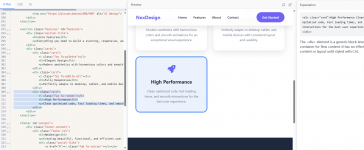
Having experienced these pitfalls myself, I decided to build a tool fully tailored for front-end beginners, focusing only on core pain points without redundant complicated features. After researching relevant materials and refining the logic with AI assistance over several days, I finally completed this HTML preview tool with core functions designed specifically for new learners:
This tool is completely free, with no registration or login required. You can start using it instantly:
 https://html-viewer.org
 Core Feature 1: Dual Linkage Highlighting for HTML & CSS
Write HTML, CSS and JavaScript code in the left split pane, with real-time preview on the right and no manual refresh required:
Click any HTML tag or CSS style in the left code area, and the corresponding element in the right preview section will be automatically highlighted with clear boundaries, allowing you to view the rendering effect at a glance;
Conversely, clicking any element in the right preview will instantly locate and highlight the matching HTML and CSS code on the left, completely eliminating the code-preview mismatch issue and greatly boosting efficiency for practicing nesting layouts and adjusting styles.
Core Feature 2: Automatic Error Detection & One-Click Repair
Tailored for common syntax errors made by beginners:
It performs real-time detection on HTML and CSS code, directly marking the positions of missing closing tags, incomplete attribute quotes, syntax errors and more, eliminating the need for line-by-line manual inspection;
It features an "Attempt Repair" function that automatically generates comparison results of revised code. You can confirm and fix errors with one click, no longer getting stuck on trivial coding mistakes for hours.
Additional Beginner-Friendly Practical Features
Code formatting and indentation adjustment to keep your code neat and standardized;
File import and export support for easy storage of practice code;
Dark mode and freely resizable split panes to fit different usage habits;
Element description panel that pops up tag and style usage instructions when clicking preview elements, enabling you to learn while coding.
After using it for a few days, I found it far more convenient for practicing HTML structure design, tweaking CSS styles, and debugging code errors. Originally built solely for personal use, I decided to share it with fellow front-end learners to help everyone avoid common pitfalls and save valuable time.
There is a complete disconnect between code and preview. After modifying a line of HTML or CSS, it takes ages to locate the corresponding element in the preview, or vice versa, resulting in extremely low error-checking efficiency.
Minor errors are hard to spot with the naked eye. Missing closing tags, omitted attribute quotes, CSS syntax mistakes and other issues will mess up the preview, yet the root cause is difficult to identify. Sometimes a single missing </div> tag can take one or two hours to troubleshoot.
At first, I tried the F12 developer tools in browsers, but they are far too unfriendly for absolute beginners. The dense hierarchical structure and mixed CSS and JavaScript code make it time-consuming just to find your own written content. It is simply overkill and only makes beginners more confused. I also tested many online preview tools, which either offer only simple split screens without linkage, or only support HTML without CSS syntax highlighting, failing to solve my fundamental problems.
Having experienced these pitfalls myself, I decided to build a tool fully tailored for front-end beginners, focusing only on core pain points without redundant complicated features. After researching relevant materials and refining the logic with AI assistance over several days, I finally completed this HTML preview tool with core functions designed specifically for new learners:
This tool is completely free, with no registration or login required. You can start using it instantly:
https://html-viewer.org Core Feature 1: Dual Linkage Highlighting for HTML & CSSWrite HTML, CSS and JavaScript code in the left split pane, with real-time preview on the right and no manual refresh required:
Click any HTML tag or CSS style in the left code area, and the corresponding element in the right preview section will be automatically highlighted with clear boundaries, allowing you to view the rendering effect at a glance;
Conversely, clicking any element in the right preview will instantly locate and highlight the matching HTML and CSS code on the left, completely eliminating the code-preview mismatch issue and greatly boosting efficiency for practicing nesting layouts and adjusting styles.
Core Feature 2: Automatic Error Detection & One-Click RepairTailored for common syntax errors made by beginners:
It performs real-time detection on HTML and CSS code, directly marking the positions of missing closing tags, incomplete attribute quotes, syntax errors and more, eliminating the need for line-by-line manual inspection;
It features an "Attempt Repair" function that automatically generates comparison results of revised code. You can confirm and fix errors with one click, no longer getting stuck on trivial coding mistakes for hours.
Additional Beginner-Friendly Practical FeaturesCode formatting and indentation adjustment to keep your code neat and standardized;
File import and export support for easy storage of practice code;
Dark mode and freely resizable split panes to fit different usage habits;
Element description panel that pops up tag and style usage instructions when clicking preview elements, enabling you to learn while coding.
After using it for a few days, I found it far more convenient for practicing HTML structure design, tweaking CSS styles, and debugging code errors. Originally built solely for personal use, I decided to share it with fellow front-end learners to help everyone avoid common pitfalls and save valuable time.